Classroom tablets are convenient — but they’re also shared. With multiple educators using the same device throughout the day, sensitive child data and incident records can be left exposed if a device isn’t locked. We’re adding a PIN lock feature to the 1Place mobile app to close that gap.
What’s New
PIN Lock for Shared Devices
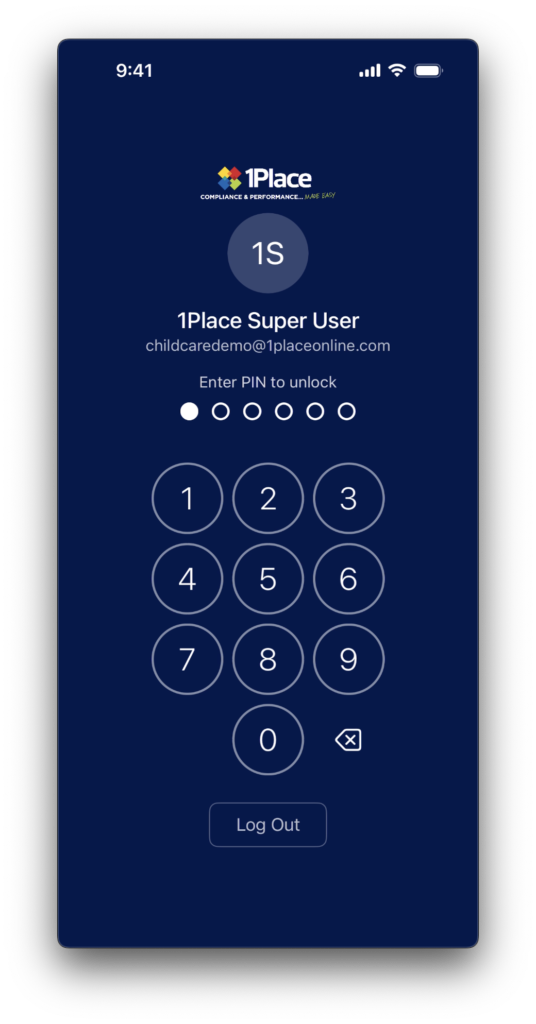
When a shared device sits idle for 3 minutes, 1Place will automatically lock and prompt the user to enter their 6-digit PIN before they can continue. The lock kicks in app-wide, regardless of how the device’s own screen lock is configured — so even if a tablet isn’t set to auto-lock, your 1Place data stays protected.
This feature is mobile-only. It’s designed specifically for the classroom context, where tablets change hands throughout the day. Users accessing 1Place via a laptop or desktop on the web are typically on personal devices, so PIN lock doesn’t apply there.
Here’s an example scenario:
A room leader puts down a tablet mid-morning to attend to a child. Three minutes later, the tablet is picked up by someone else. Before they can see any incident records or compliance data, they’re prompted for the PIN.
Why This Matters
- Child records, incident forms, and compliance data on shared devices are protected from unauthorised access
- Works independently of device-level lock settings — no reliance on individual staff to configure their tablet correctly
- Consistent protection across every device running the updated app
Simple Setup On First Login
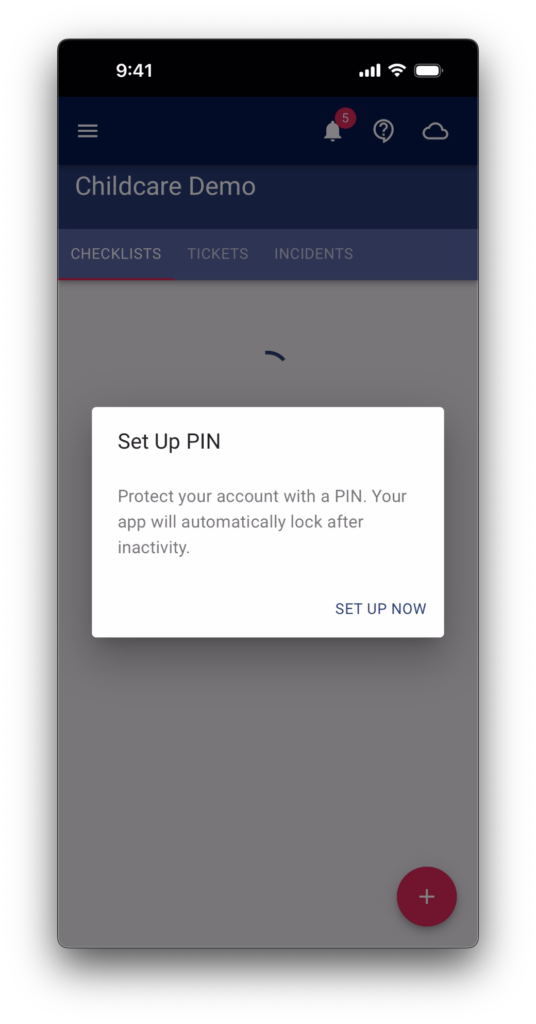
When a user logs into the updated app for the first time, they’ll be prompted to set their PIN by entering it twice to confirm. That’s it. The PIN is stored locally on the device — it’s not held on 1Place servers — so each device needs its own PIN set up individually. If you log into two different tablets, you’ll need to set a PIN on each one.
Why This Matters
- Quick, one-time setup with no admin configuration required
- PIN data never leaves the device — no server-side exposure
- Each device is independently secured, keeping things simple to manage
PIN Reset and Recovery
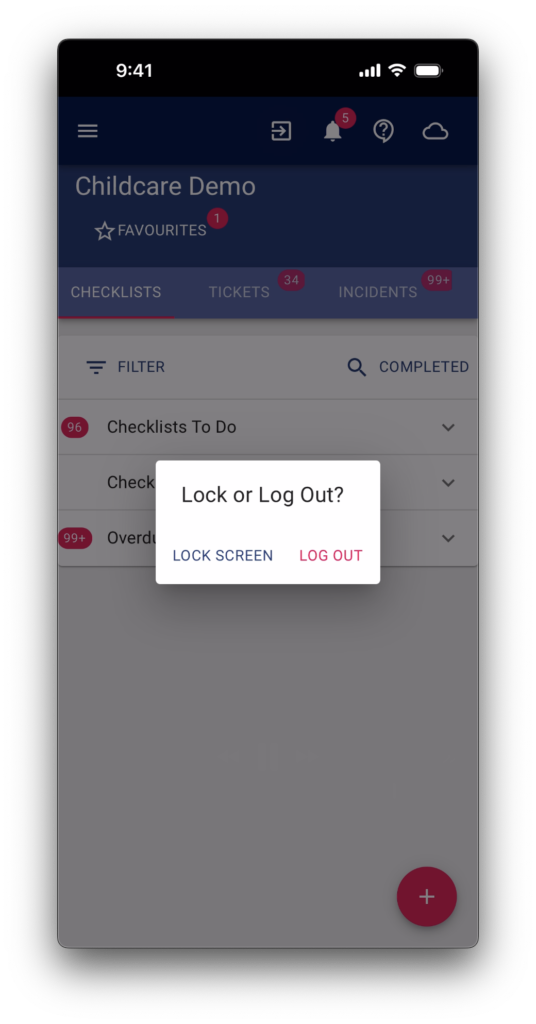
Users can reset their PIN at any time by going into Settings while logged in. If a user forgets their PIN, they can log out and back in — once authenticated, they’ll be prompted to set a new PIN. After 3 consecutive failed PIN attempts, the app will also prompt a reset automatically.
Why This Matters
- Staff won’t get permanently locked out — recovery is straightforward
- No admin intervention needed for a basic PIN reset
- The 3-attempt limit stops unauthorised guessing
Manual Lock Button
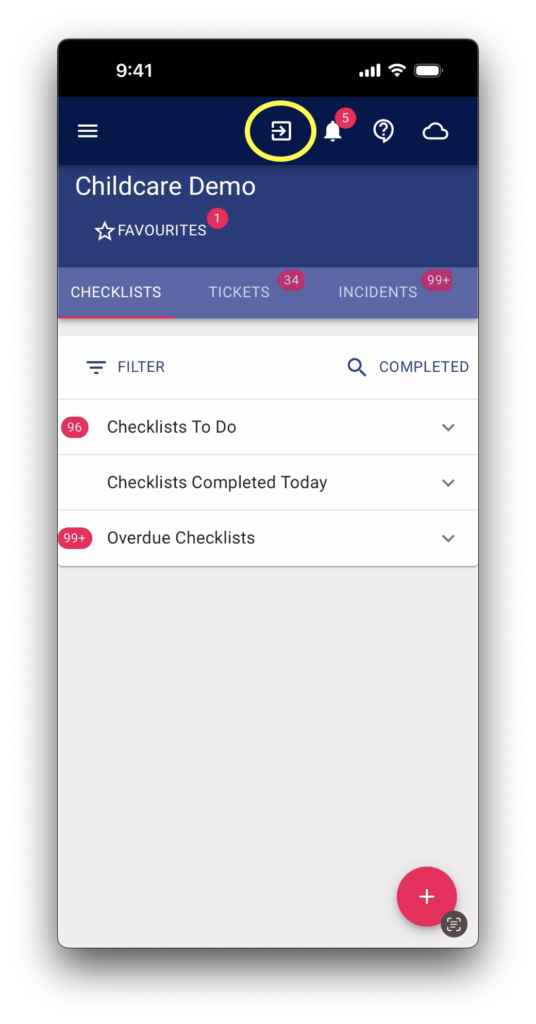
A new exit icon at the top of the app screen lets users manually lock the device at any time — no need to wait for the 3-minute timeout. Useful at end of shift or any time a device is being handed over.
Why This Matters
- Educators can lock instantly when stepping away, rather than waiting for the auto-lock
- Reinforces good habits around device handover between staff
How PIN Fits Into Your Existing Login
PIN lock is an extra step on top of your current login process — it doesn’t replace anything. The order looks like this:
Step 1: Log in with your username and password
Step 2: Complete two-factor authentication
Step 3: Enter your PIN.
So even if someone picks up an unlocked tablet, they’d still need to get through all three steps before seeing any 1Place data.
One thing to note: the current release secures each individual user on a device. Support for switching between multiple users on the same tablet — for example, a shared centre login followed by individual educator logins — is coming in a future update.
Why This Matters
- Adds a third layer of protection without changing how your team logs in
- Keeps your data secure at the app level, regardless of device or network settings
- Multi-user switching on shared devices is on the roadmap
Getting Ready for the Update
PIN lock activates automatically when you update to the new version of the 1Place app from the App Store. There’s nothing to configure in advance. Once updated, each user will be prompted to set their PIN on their next login.
Your Client Success Manager can answer questions before rollout, and our support team is available if anything comes up during the update.