Do incidents in your program bunch up at drop-off, around mealtimes or late in the afternoon? The answer is already in your incident records. Until now, finding it meant someone sitting down to work through them.
By Sunday, December 6, 2026, the 1Place Childcare December release puts that pattern on your Home Dashboard. It also takes some of the chasing out of your week. 1Place can email completed checklists to the people who need them, families can complete their part of a checklist by secure link, and teachers can switch in on a shared device with a PIN.
Here is everything in the release, and what to set up first. One change needs a Super User as soon as it goes live, so it is worth reading to the end.
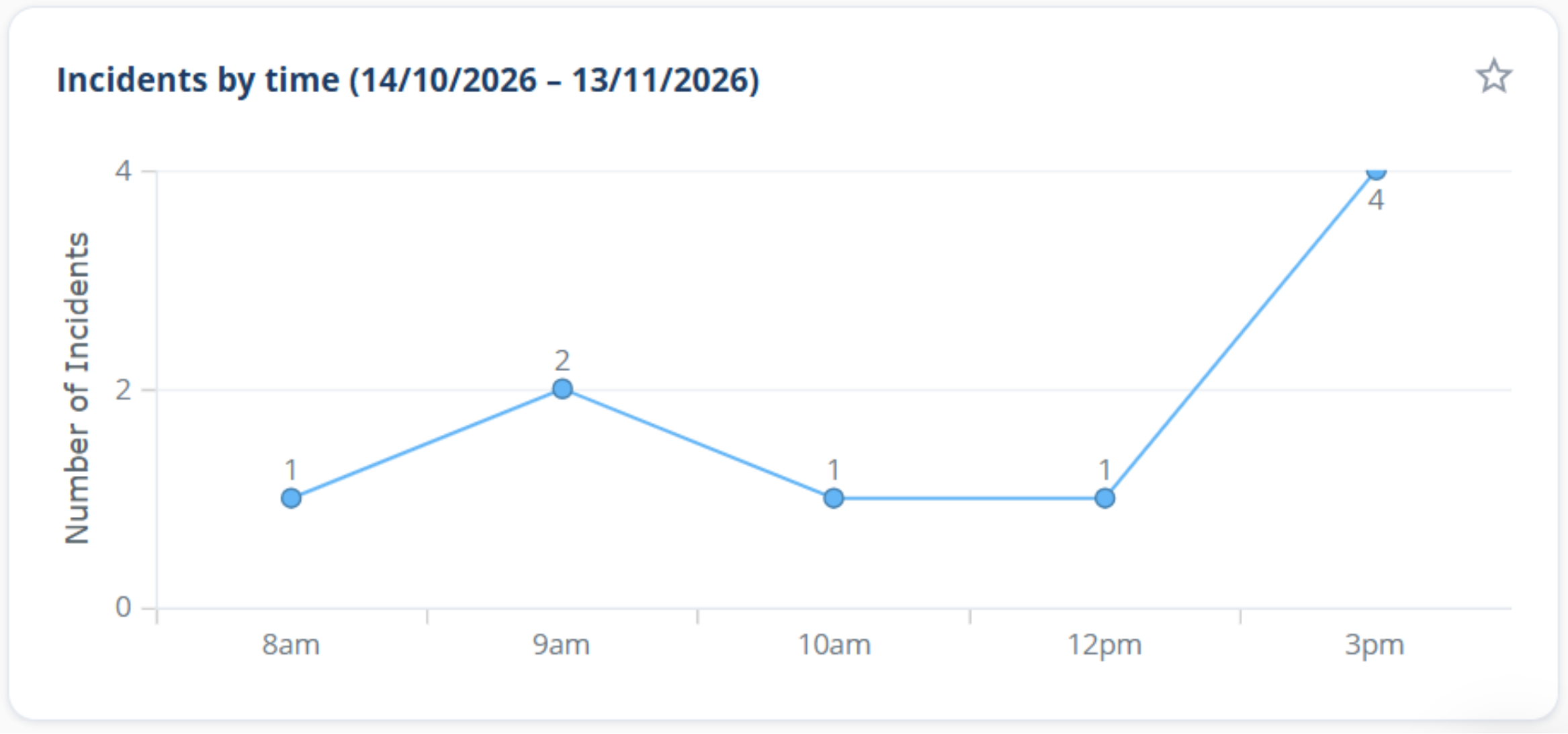
See what time of day incidents happen
A new Incidents by Time graph on your Home Dashboard shows how many incidents were recorded in each hour of the day. It uses the Time of Incident field and follows the same center and date range filters as your other incident graphs.
Hover over a point to see the hour and the count. Only hours with at least one incident appear, and incidents recorded without a time, such as older ones, are not counted.
You can also set the range of times your team can enter, for example 7 a.m. to 7 p.m., so an incident cannot be logged at 3 a.m. by mistake.
When you can see where incidents cluster, you have something concrete to bring to your conversations about staffing, ratios and supervision.
Open PDFs straight in your browser
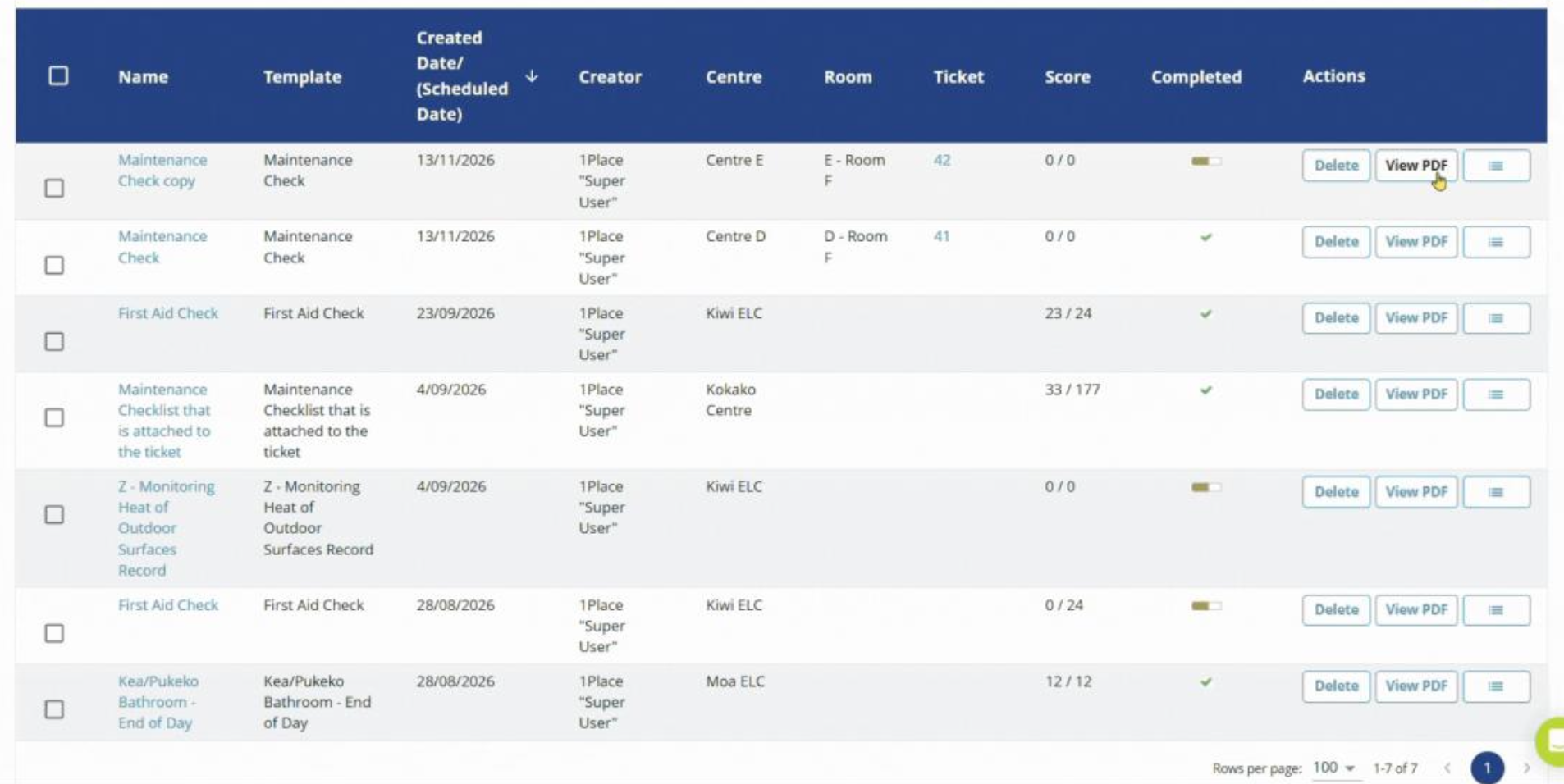
Checklist, incident and ticket PDFs now open in your browser. On those registers, the Print button is now View PDF. In your documents, PDF and image files have a new View button beside Download.
Read what you need without leaving a copy in the downloads folder of a shared computer. A Download button inside the viewer is there when you do want to save the file.
Word and Excel files keep their Download button. Viewing follows the same access as downloading, so nobody sees a document they could not already download.
Send incident alerts without the PDF
Incident PDFs carry children’s and families’ personal details. Every one attached to an email is another copy sitting in an inbox, easy to forward on.
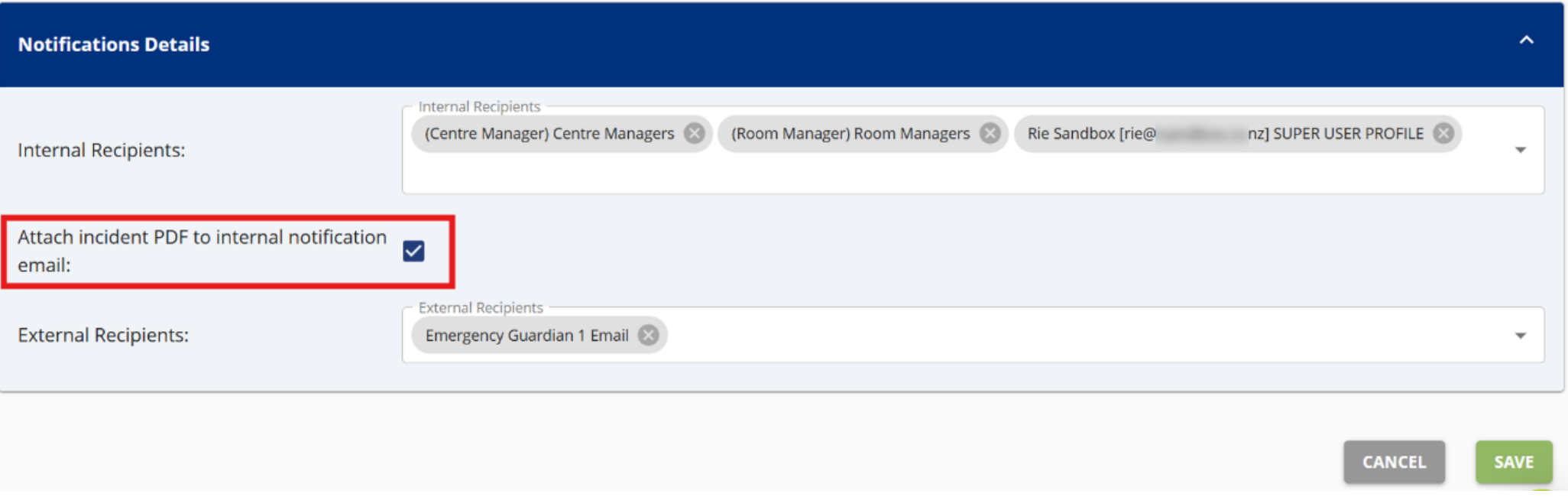
You can now turn the PDF attachment off for any incident type. Internal recipients still get the alert, with a link to the incident instead of the attachment.
Nothing changes until you switch it off, and you choose for each incident type. You might keep the PDF for serious incidents and leave it off for minor ones. The setting applies to emails sent after you change it.
In the Incident Builder, open the menu beside an incident type and select Settings. Under Internal Recipients, turn off Attach incident PDF to internal notification email, then select Save.
Switch users on a shared device with a PIN
One tablet in the classroom, several teachers on shift. Logging all the way out and back in every time it changes hands slows everyone down.
With PIN login and the Center App, each teacher sets their own PIN and switches in with it. Your scheduled checklists work just as they do now.
PIN login is available on request. Talk to your Client Success Manager to set it up. If your program closes over the holidays, that is a great window to do it.
Watch the PIN login video here
Send completed checklists automatically
Your regional director wants the end of day audit. Your owner wants the monthly fire drill record. Until now, someone had to remember to send them.
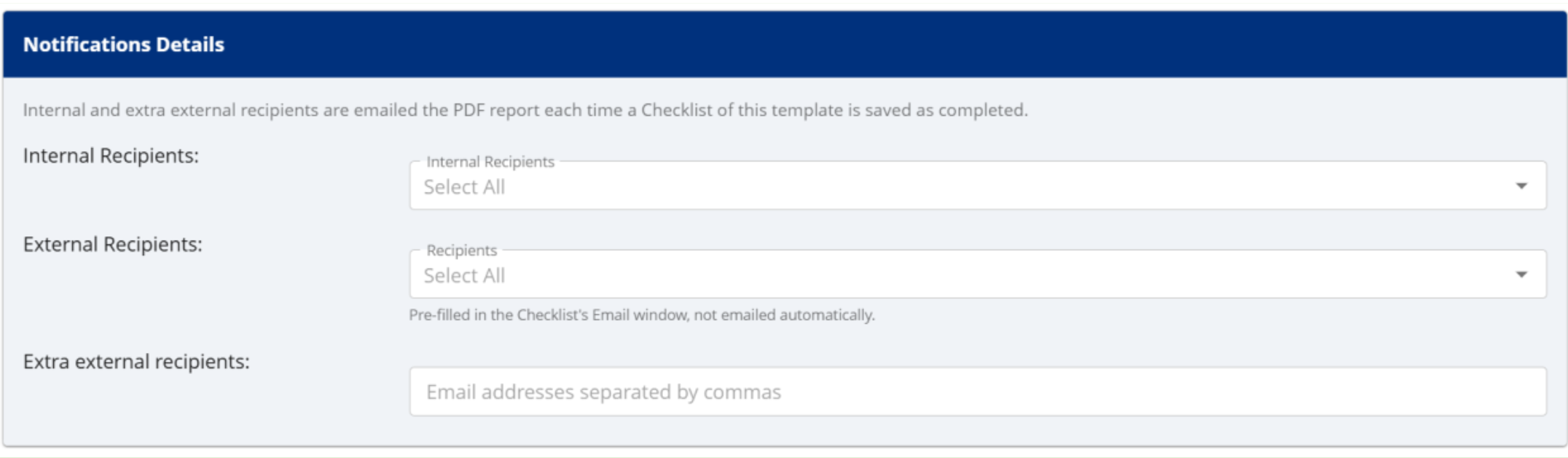
Now you choose who receives each checklist template, inside your organization or outside it. When a checklist from that template is saved as Completed, on the web, in the app or through a survey, 1Place emails the PDF report to them.
- Internal recipients get a branded 1Place email with an Open Checklist button.
- External recipients get the PDF attached, or a Get PDF Copy button. Large PDFs arrive as a secure download link, and external links work for 7 days.
- Recipients cannot see each other, and every email appears in your Sending History.
Open a Checklist Template, select Settings and add recipients in the new Notifications Details card. Only Super Users can change the internal recipients. Nothing is sent until you add recipients, and a completed checklist that is saved again is sent again.
Let families complete their part by secure link
Some checklists need a parent’s input. A medication form needs their sign-off. An acknowledgment needs their response.
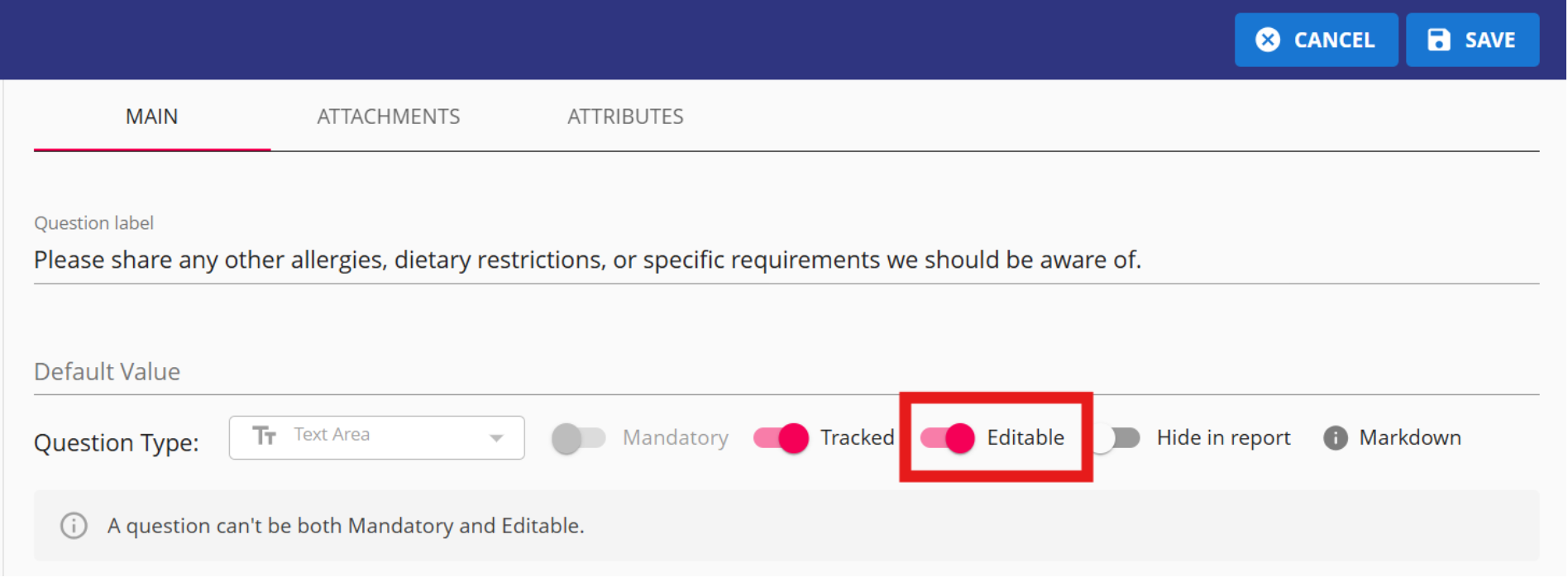
If you use the People module, you can now send a parent or guardian a secure link to a checklist. They answer only the questions you have marked as Editable. Everything else shows as read-only, and they do not need a 1Place login.
In the Checklist Builder, switch on Editable for each question they should answer, then publish a new version. When you submit the checklist, select Send a link to complete the Editable questions? and add their email address.
The checklist is submitted right away, and their answers are added when they save. A question cannot be both Mandatory and Editable.
Choose who can run the Person Report
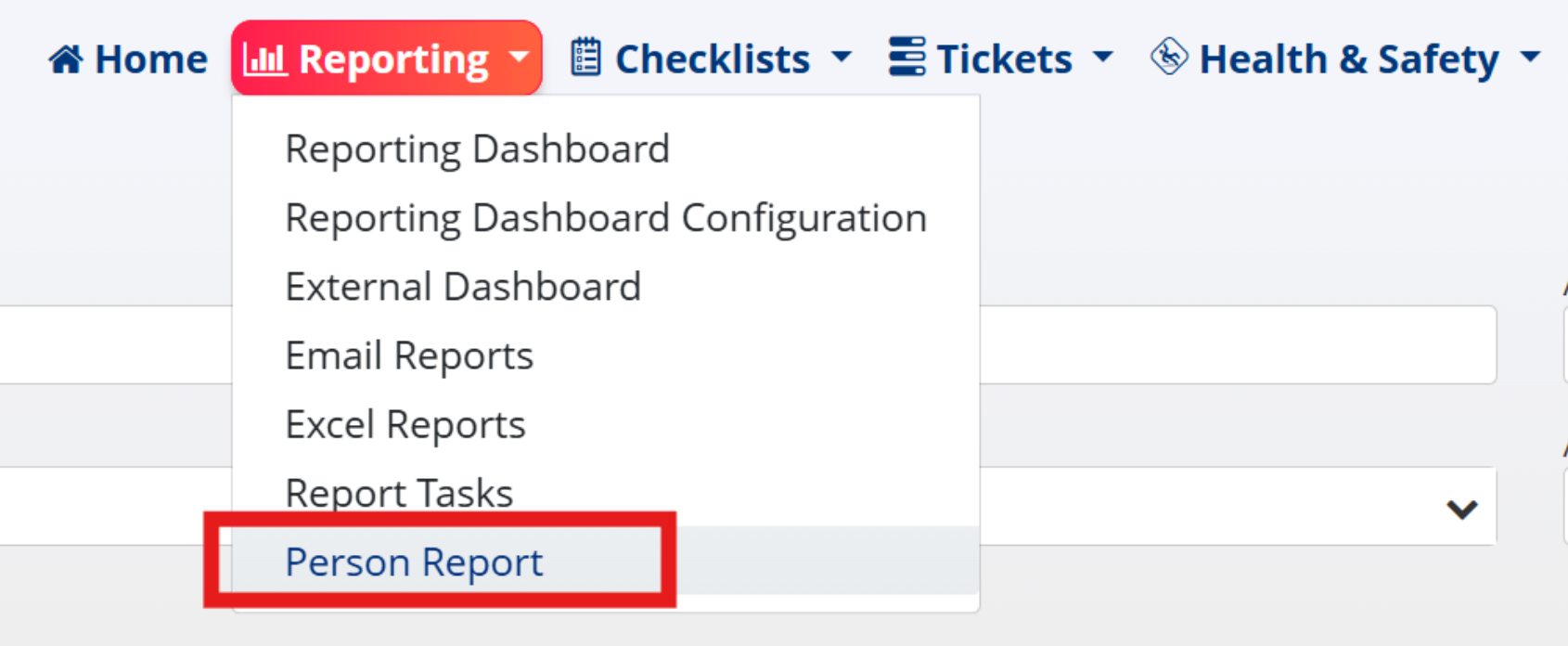
The Person Report holds personal details about your staff and the other people in 1Place. You now choose which Profiles can run it.
Action needed: Person Report is turned off for every Profile after the update. People who use it today will not see it until a Super User turns it on for their Profile.
Go to Settings, User Management, then Profiles. Edit a Profile, select Access To Person Report under Reporting, then select Update. To set many Profiles at once, use the new Person Report column in the Profile bulk upload spreadsheet.
Staff still need People access to use the report, and including documents still needs the Documents permission.
Give survey incidents a category automatically
On the Incident Survey page, you can now choose a default category from the incident type’s categories. Incidents submitted through the survey get that category automatically, and the field stays hidden from the person completing it.
When Access to Incident All Time is turned off for all Profiles, only users in that category can see those incidents.
Bring your JuniorLogs people into 1Place
If your programs already use JuniorLogs, there is no need to enter the same people twice. 1Place can now sync your children, with up to two parents each, and your teachers into People.
The integration is available on request. Your Client Success Manager can help you set it up.
Smaller improvements
- Checklist Builder: saving a draft no longer locks the question type of new questions. They stay editable until you publish the version.
- Surveys: inactive and archived programs no longer appear when someone completes a new checklist or incident survey. Existing records stay as they are.
- Checklist Templates list: templates with more than 99 schedules show 99+, and selecting the count opens them all, so the page stays quick to load.
- Notifications: Group Contact notifications now reach people who have access through a center alias.
- Incidents: text boxes on the original incident form now show their character limit as you type.
What’s coming next
Custom wording for the family link emails is on its way.
Get ready for December 6
- Add the Time of Incident field to your incident forms now, so your new graph has data from the day it goes live.
- Super Users, turn Person Report on for each Profile that needs it as soon as the release is live.
- Once the release is live, update the 1Place app on your phones and tablets.
- Want PIN login? Talk to your Client Success Manager.
Missed the December release webinar, or want to share it with your team? The full recording walks through every update above. Watch the full recording here
Want every change in one place? The release notes cover each one step by step, ready to save or share. Download the December release notes (PDF)
Your records should reach the people who need them, without anyone chasing. We digitized compliance in 2006, back when it lived in a folder. Today 4,000+ centers worldwide run on 1Place.
Which change will make the biggest difference to your team? We would love to hear. If you have any questions, your Client Success Manager is here to help.