

Are your team’s photos telling the whole story?
Two new features are coming to 1Place that give your team richer, faster ways to document what’s happening across your centre. Image annotation and video upload mean less guesswork, stronger audit trails, and more time back for children.
What’s New
Image Annotation
Your team can now draw directly on photos taken within 1Place. Use a finger on a mobile device or a mouse on the web portal to circle, highlight, or mark up any part of an image before saving it to the record.
Example: An educator photographs a damaged section of outdoor equipment during a hazard check. Instead of writing a paragraph to explain which part needs attention, they circle it on the photo. Anyone who reviews the record instantly sees exactly what was flagged.
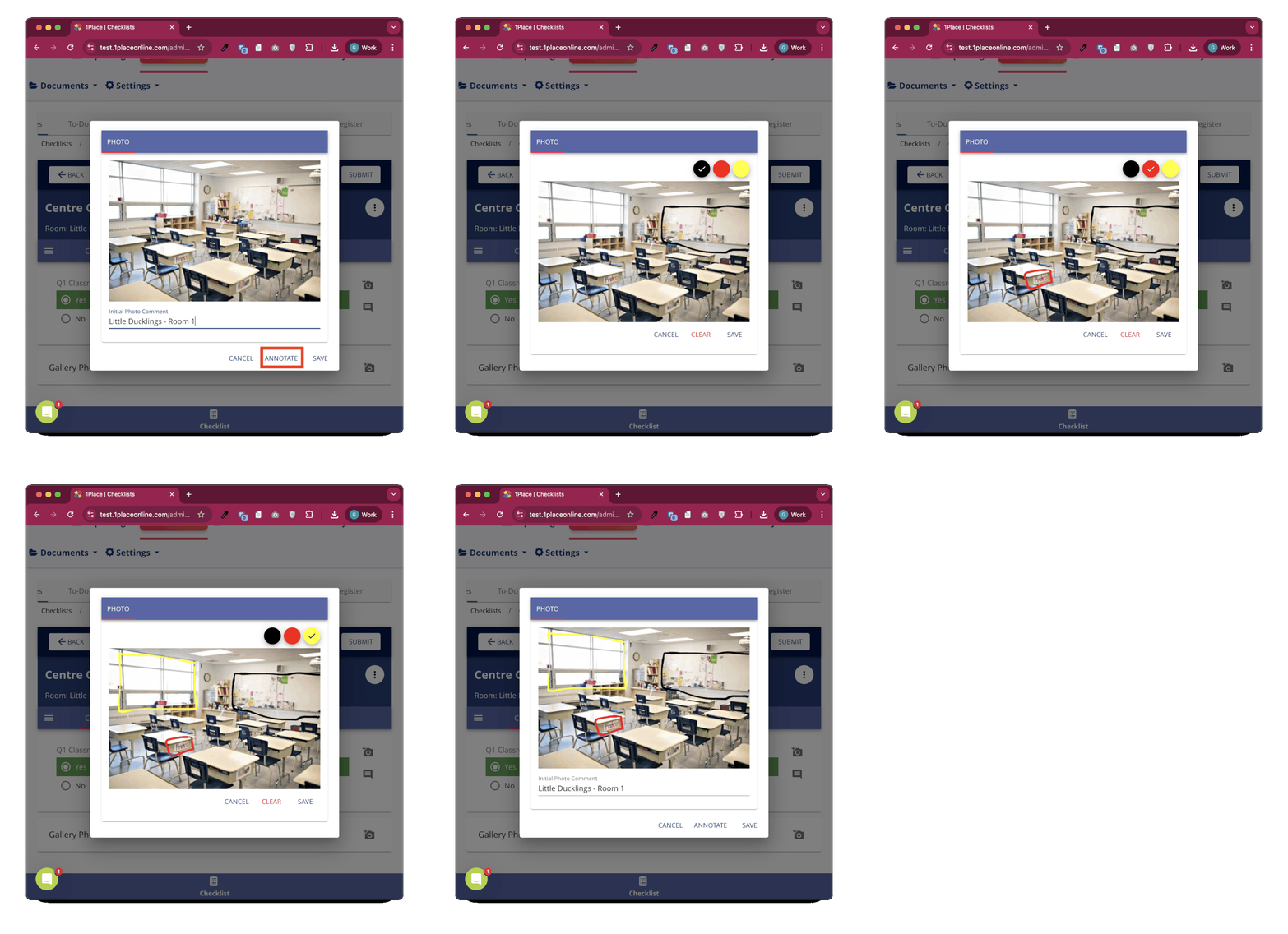
Why This Matters
- Removes guesswork for reviewers. A marked-up photo communicates what words often can’t.
- Works across all platforms — mobile app, PWA, and web portal — so your whole team can use it regardless of device.
- Available wherever photo capture exists in 1Place: checklists, incident forms, hazards, and tickets.
- Strengthens your documentation with clear, visual evidence that stands up during assessment and ratings visits.
Video Upload
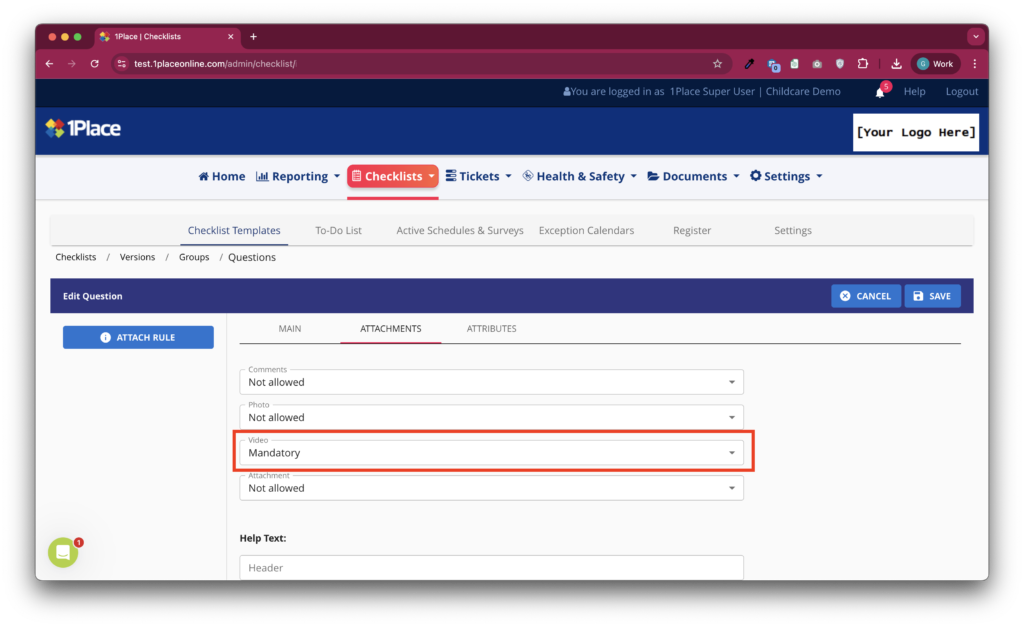
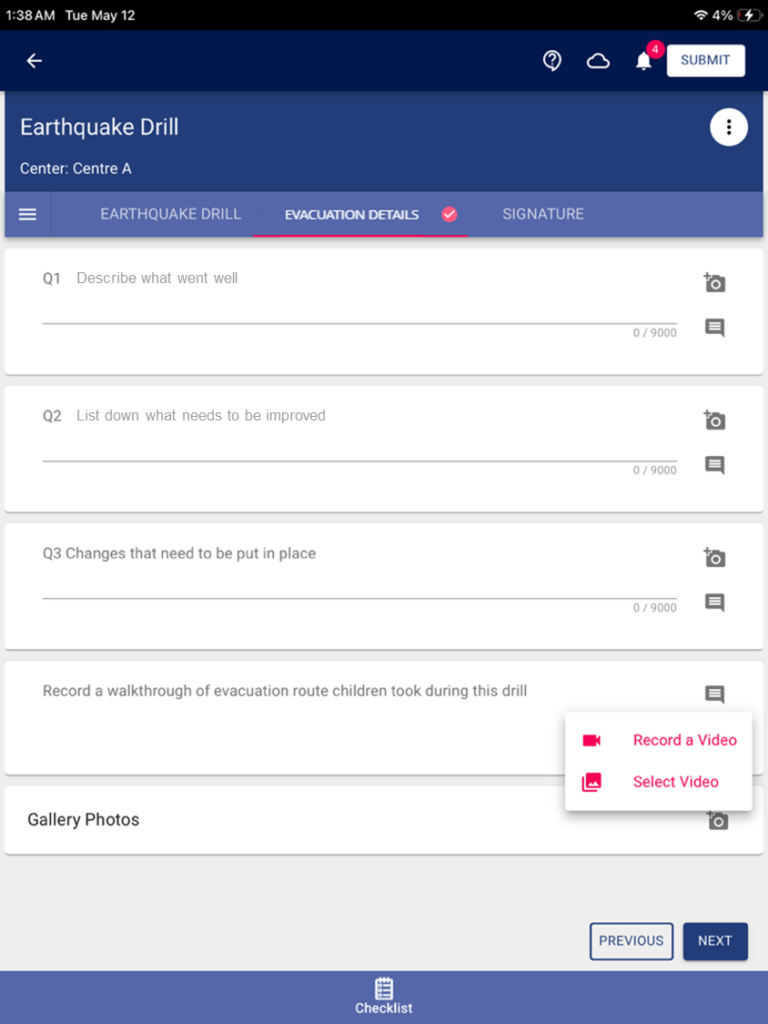
Video can now be enabled as an attachment option on checklists and incident forms (V2). Centre managers and Super Users can configure video as optional or mandatory on any question — the same way photos and comments are configured today. Once uploaded, videos play back directly inside the checklist or incident form. No downloading. No switching apps. Just press play.
Example: During an outdoor safety walkthrough, an educator records a short video panning the full play area. The clip captures context a single photo can’t — the scope of the environment, visible wear on equipment, and any concerns in one take.
Why This Matters
- Video captures detail that photos can’t. A short clip can show a full environment, a sequence of events, or evidence that’s hard to put into words.
- Videos play back directly in the record, so directors and reviewers can watch without leaving the platform.
- Configure video as optional or mandatory per question, so you stay in control of what your team captures and when.
- Available for checklists and incident forms (V2).
Please note: Video files have a size limit. Short clips of around 15 seconds work best. If you’re using a newer high-resolution device, keep clips brief to ensure smooth loading for anyone viewing the record.
Transitioning at Your Own Pace
Nothing in your existing checklists or forms changes automatically. Video must be enabled per question by a Super User before your team will see the option — you’re in full control of how and when you roll it out.
Your Client Success Manager can walk you through setting up video on your templates, and our support team is available for questions during rollout.
These features are coming soon. We’ll share more as soon as they go live.